✨ Feature Guide
Skipped the tutorial or missed a recent update? This is everything Talesmyth can do.
✏️ Editor
@ Entity Linking
Type @name anywhere in a tale or entity note to open an inline search.
Find an existing character, location, or entity and insert a live link in one keystroke, or create a brand-new entity on the spot without leaving what you're writing.
Fuzzy search is used, so partial names and aliases both work.
# Tale Linking
Type #title to search your world's tales and insert a clickable link to one. Useful for cross-referencing plot threads, session notes, or world lore without leaving the editor.
Autolink
As you finish typing any entity name (or one of its aliases), Talesmyth automatically turns it into a linked reference, no shortcuts needed.
Press Escape within 3 seconds to undo the most recent autolink if you didn't mean it.
Autolink also recognises possessive forms (e.g. "Aria's") and common pluralisations.
Selection Toolbar
Select any text and a compact floating toolbar appears directly above the selection.
Apply bold, italic, or underline instantly, or hit the link button to convert the selected words into an entity link without reaching for the main toolbar.

Tables
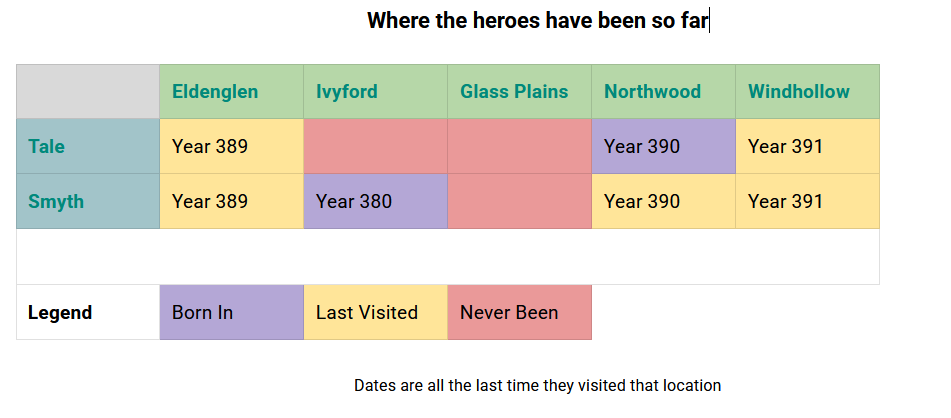
Insert a table anywhere in a tale or entity note from the toolbar.
Click inside the table to reveal the table toolbar: add or remove rows and columns, merge cells, and set individual cell background colours. Drag the cell borders to resize.
Tables work in both light and dark themes.
Checklists
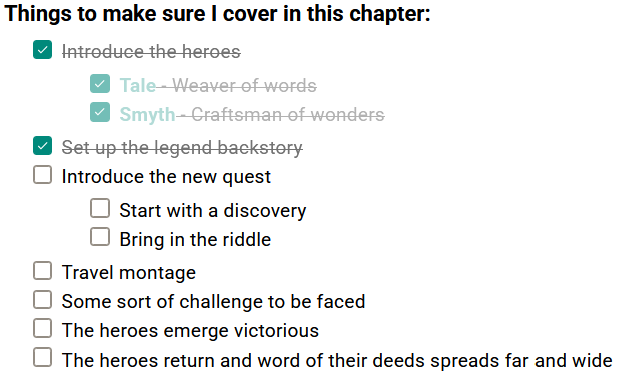
Add an interactive checklist block to any tale or entity note. Tick items off directly in the editor, great for session prep, to-do lists, or tracking which world elements you've fleshed out.
Info Blocks
Insert an Info block (available from the block-type dropdown) to create a visually distinct callout with a teal accent border, subtle background, and a lightbulb icon.
Use it for world rules, GM notes, or anything that needs to stand out from the main prose.
Works in both light and dark themes.

🧩 Entities
Relationships
Link any two entities (characters, locations, or custom types) with a one-way or two-way relationship.
Add and manage relationships from the Relationships tab inside the entity editor, or draw them visually on a Board. Each relationship can have a label to describe the connection.
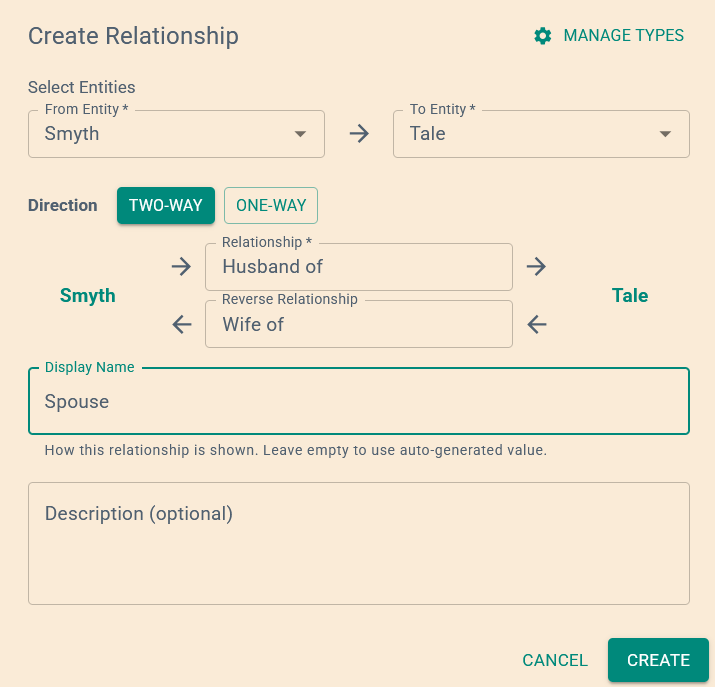
Relationships are visible on Boards as connecting lines between entity nodes.
Category Blueprints
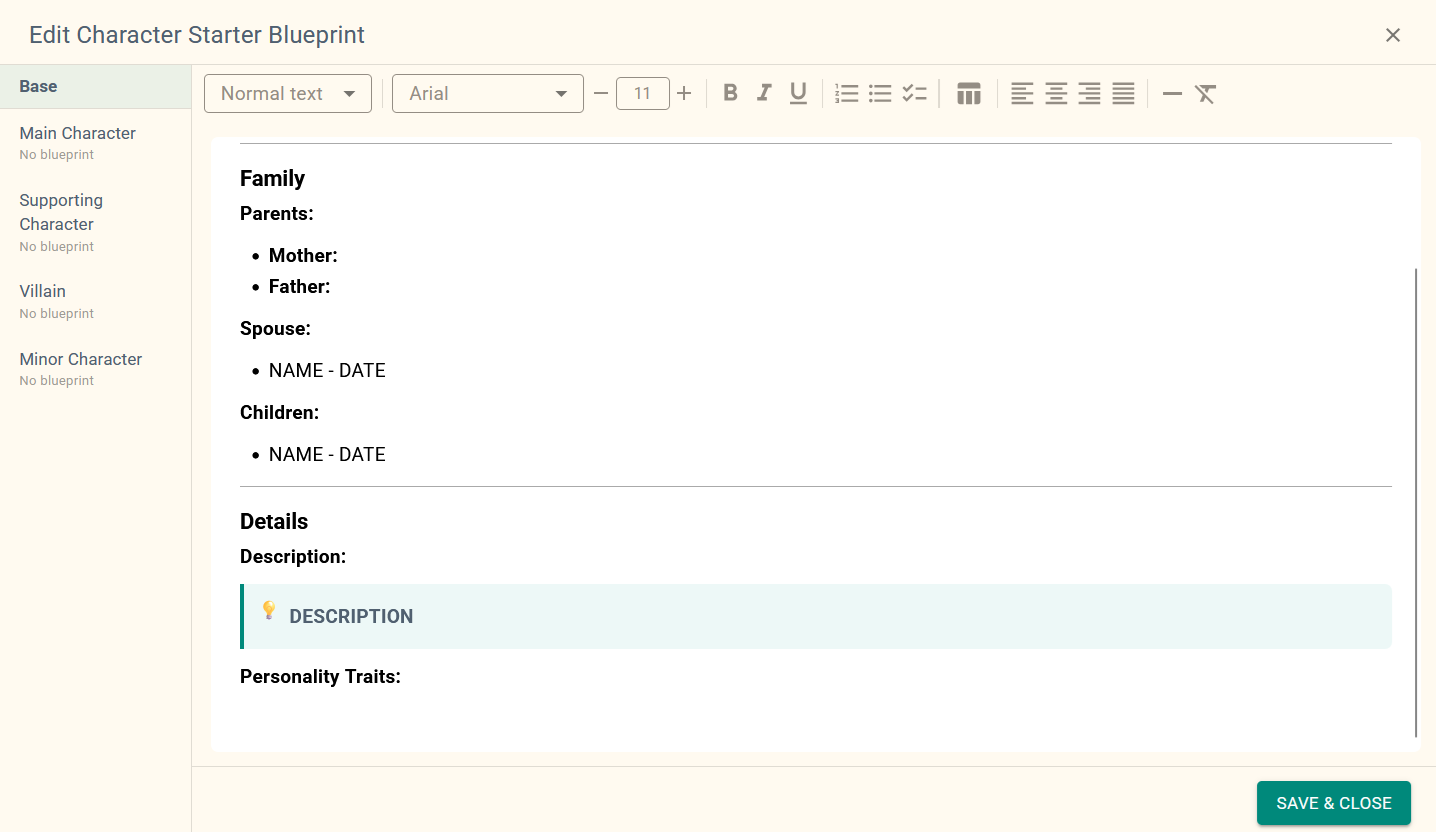
Define a starting template for an entire category. Every new entity created in that category begins with your pre-filled structure.
Open the blueprint editor by clicking the category name in the Browse sidebar or right-clicking it in the Recent sidebar.
Stop starting from a blank page.

Subtype Blueprints
Each subtype within a category can have its own separate starting blueprint.
For example, a Main Character and a Side Character subtype can each have different pre-filled sections. Switch between subtype blueprints using the side tabs in the blueprint editor.
Aliases
Give any entity alternative names, nicknames, titles, former names, or shortened forms.
Autolink, @ search, and AI tools all recognise aliases as equally valid names.

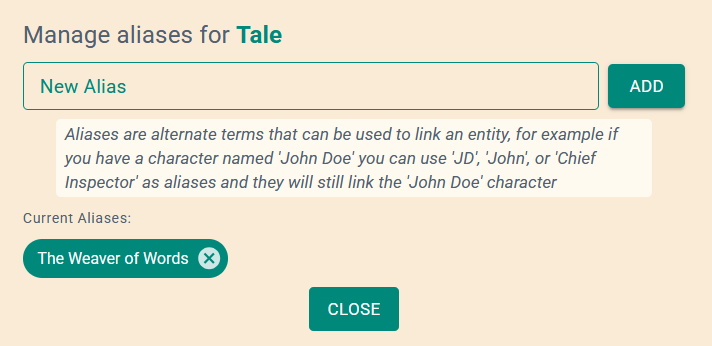
Aliases also work with possessive forms and common pluralisations in autolink.
Subtypes
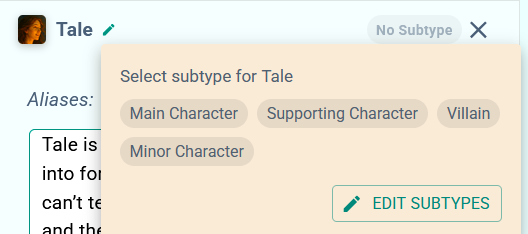
Add a subtype to any entity to sub-categorise it within its parent category.
For example, tag characters as Villain, Supporting Cast, or Narrator to keep large casts organised and easy to filter.
Entity Images
Upload an image for any character, location, or entity.
For non-square images you can choose which part becomes the thumbnail, the full image is always preserved.
Thumbnails appear next to entity names in lists, cards, and the entity editor.
Images are automatically optimised for fast loading.
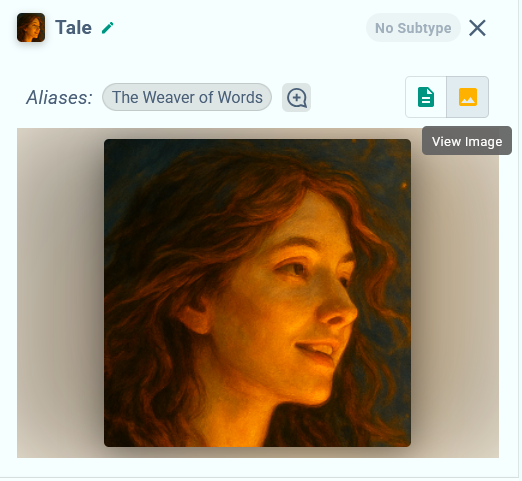
Hover over any linked entity name in a tale to see a pop-up preview including their image.
🎨 Boards
Visual Canvas
Create a Board tale to build diagrams, maps, planning layouts, and anything else that works better visually than in prose.
Drawing tools include rectangles, circles, lines, arrows, freehand pen, and text elements, all with customisable colours, sizes, and styles.

Boards count as Tales and share the same tale limits as written content.
Entity Nodes
Drag any character, location, or entity from your world directly onto a Board as a visual node. Click a node to open the full entity editor without leaving the board.
Entity nodes automatically display the entity's name and thumbnail image.
Relationship Visualisation
Entity relationships are drawn as connecting lines between nodes on the Board, giving you an at-a-glance map of your world's connections.
Add new relationships directly on the board or manage them in the entity editor, both stay in sync.
Canvas Orientation
Switch the board canvas between portrait and landscape orientations to suit your preferred layout or to match the shape of the output you need.
Useful when preparing content for printing or sharing.

Export Board as Image
Download any Board as an image file to share with collaborators, attach to notes elsewhere, or print.
The export captures the full canvas at high resolution.

🌍 Worlds
Export Your World
Download your entire world as a ZIP file containing: structured YAML data for every entity, human-readable text files you can open in any editor, and a README guide explaining the format.
Subscribers also receive all world images in the export.
Use it as a backup, to share with other users, or to archive a completed project.

Free users receive the full data export without images. Images can still be downloaded individually from the app.
Import a World
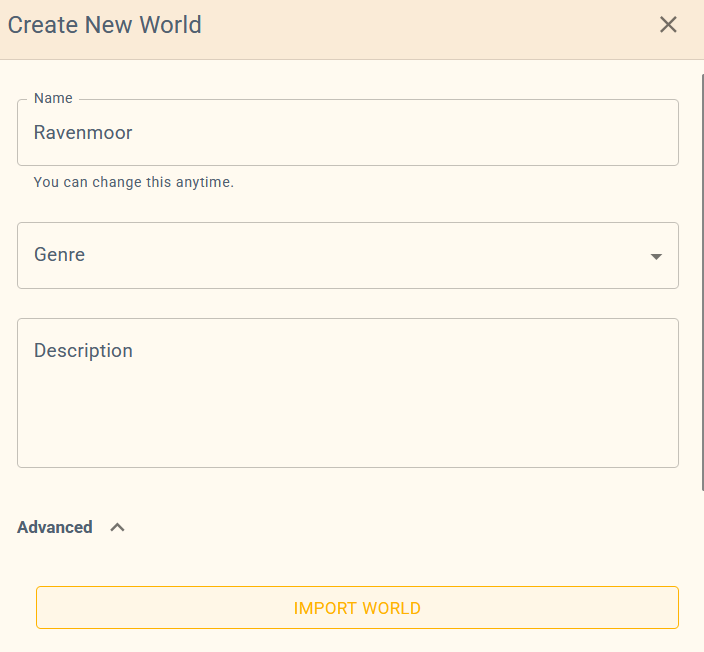
Restore or transfer a world by importing a ZIP or YAML export file.
The importer intelligently matches entity names and preserves your folder structure, so imported worlds land exactly as they were exported.
To import a world, create a new world and find Import in the advanced options.
World Cover Images
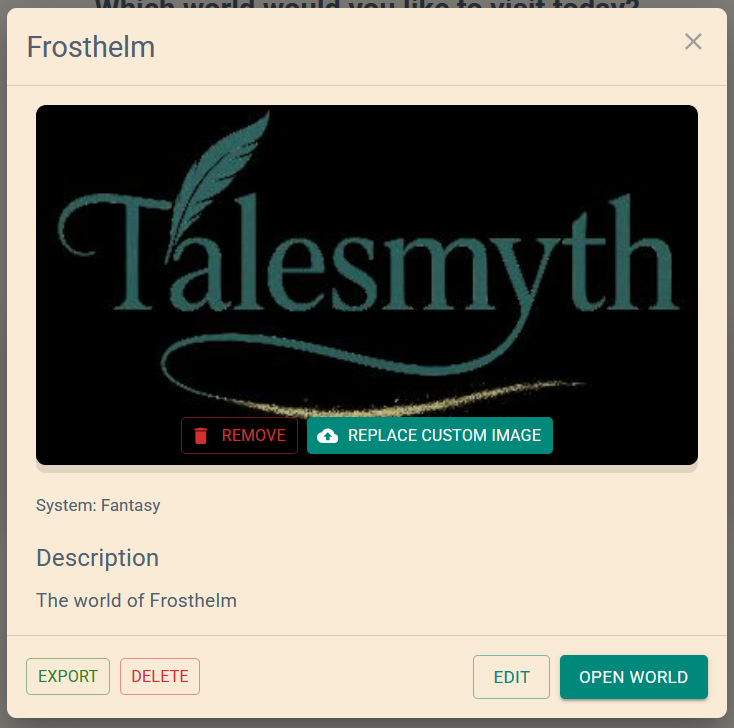
Upload a custom cover image for each world to be shown on the worlds overview page to help you find the right world at a glance.
Covers can be updated or removed at any time from the world settings.
Genres & Game Systems
Choose a genre or game system when creating a world to start with pre-populated categories, entity types, and starter content tailored to your setting.
Options range from Fantasy and Sci-Fi to D&D 5e, Pathfinder 2e, and more.
See all available genres and systems →
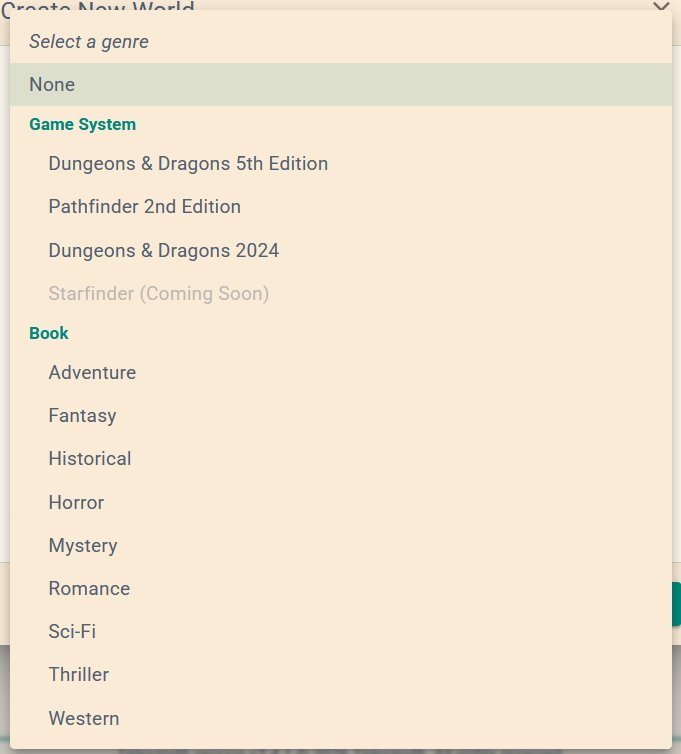
You can always add, rename, or remove categories after creation, the genre is just a starting point.
World Settings & AI Controls
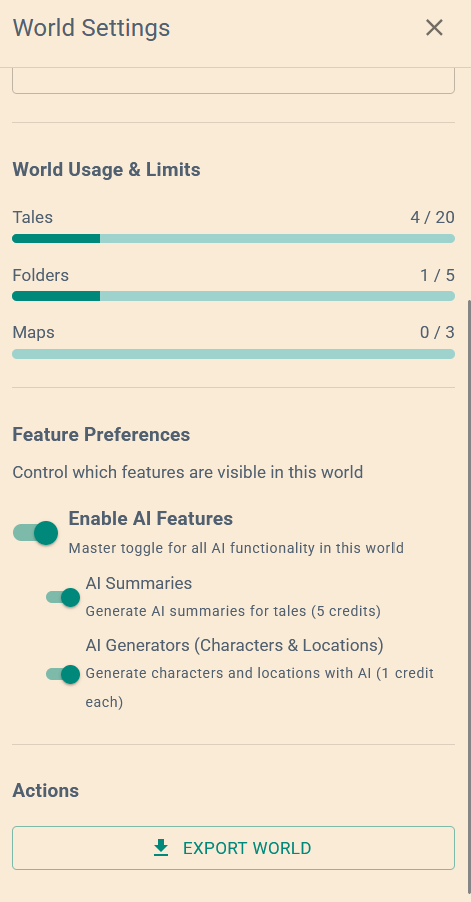
Open the ⚙️ settings drawer (header, desktop only) to access world details and fine-grained AI controls.
See some stats for your world, and check on your world limits.
Toggle all AI features on or off with a master switch, or control each tool (character generation, location generation, summaries) individually.
Useful for keeping the interface clean if you prefer to write without AI assistance.
📖 Tales
Folders & Organisation
Organise your tales into nested folders of any depth. Right-click any tale or folder in the sidebar to move, rename, or delete it.
The Move dialog lets you move items anywhere in your folder hierarchy without losing content.
Tale Templates
When creating a new tale, choose "Use a template" to start from a guided outline with pre-filled headings and writing prompts.
Templates give your tale a ready-made structure so you can start writing the content, not the scaffolding.
More templates are added over time. Check back when starting a new tale.
Print & PDF Export
Print any tale as a formatted manuscript directly from the browser.
The print view strips away the talesmyth styling and formats your content cleanly for reading.
Board Tales
Create a Board tale alongside your written content.
Use boards for relationship maps, scene diagrams, location layouts, or any planning that works better visually.
Boards can also be exported as image files for sharing or printing.
🤖 AI Tools
AI Character Generation
Describe a character in one or two sentences and Talesmyth generates a full starting profile: name, personality traits, physical description, and backstory.
The AI uses your world's genre and existing entities for context, and automatically links the generated content to real characters and locations in your world.
Costs 1 credit per generation.
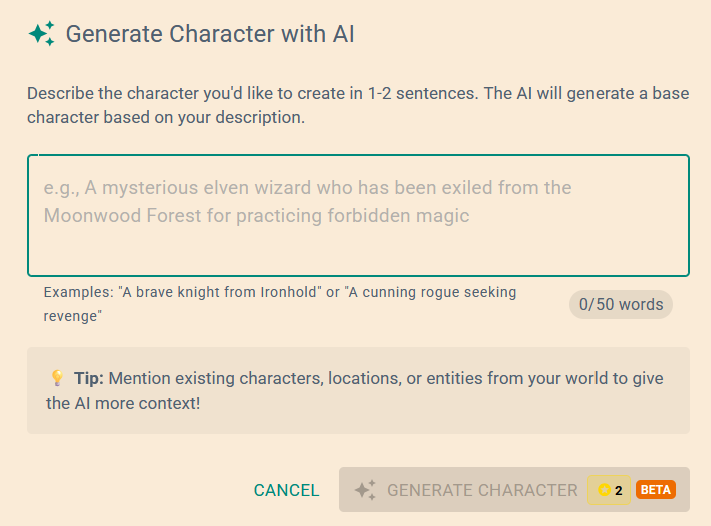
The generated character opens directly in the entity editor for immediate review and editing.
AI Location Generation
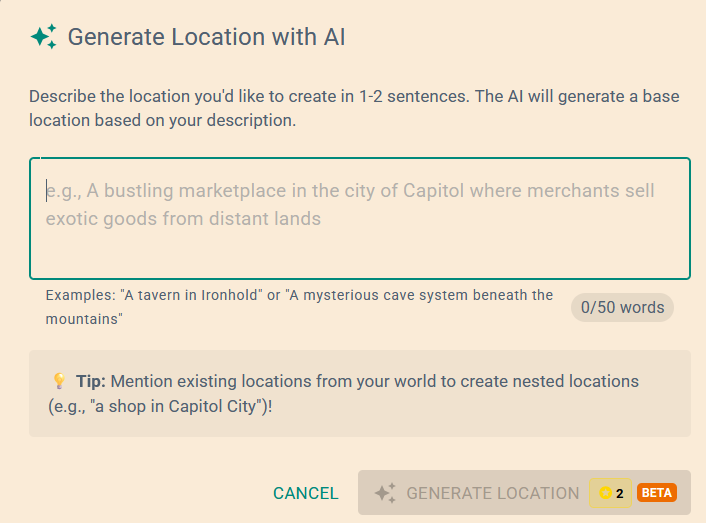
Describe a location(for example, a tavern, a city, a space station, a continent) and the AI generates a detailed starting entry using your world context and existing entities.
Works at any scale, from a single room to an entire planet.
Costs 1 credit per generation.
AI Summaries
Generate a concise summary for any Tale.
Need another option? Generate additional ones for 1 credit each, with each having a different tone.
Initial generation costs 5 credits.
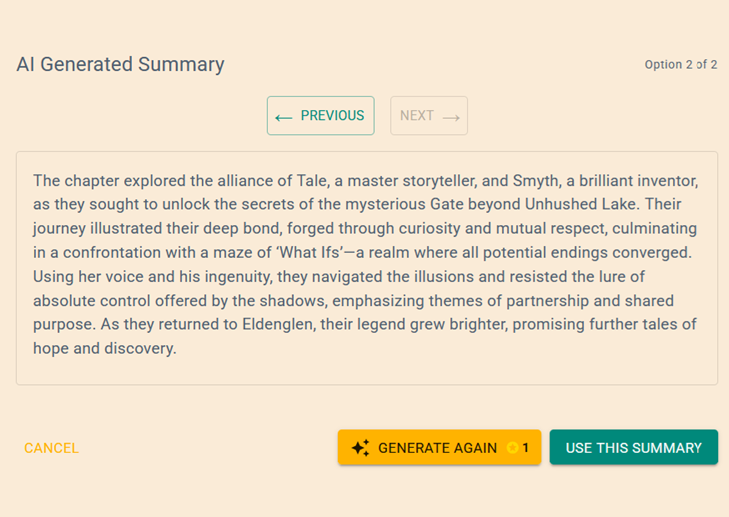
A confirmation dialog shows the credit cost before generating, so there are no surprises.
🔗 Sharing
Share Your World with a Link
Create a public link to your world and send it to anyone.
Viewers don't need an account, they just open the link and start reading.
Handy for showing players your setting, sharing lore with a community, or letting readers poke around your world.
Open the Share dialog from the header to create your link.
Choose Exactly What to Share
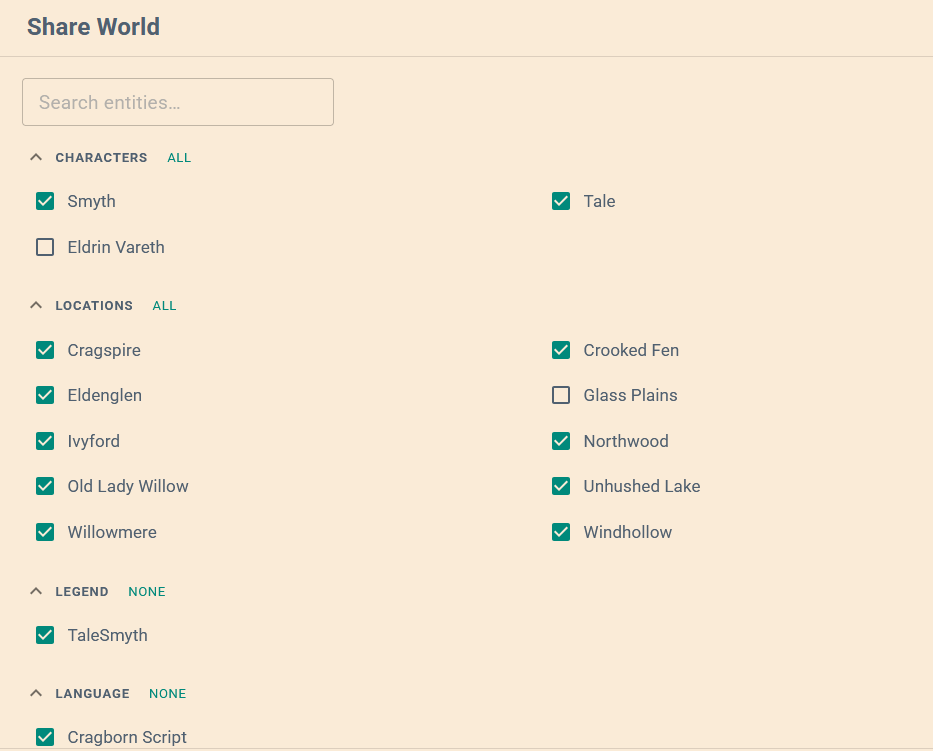
Sharing is opt-in per item. Tick individual tales, entities, and boards, or share the whole world at once.
Anything unchecked stays private. It's not just hidden, it's never sent to viewers at all, and private entities don't show up in board relationship lines either.
You can change your selection whenever you like and the same link reflects it straight away.
A Read-Only View for Visitors
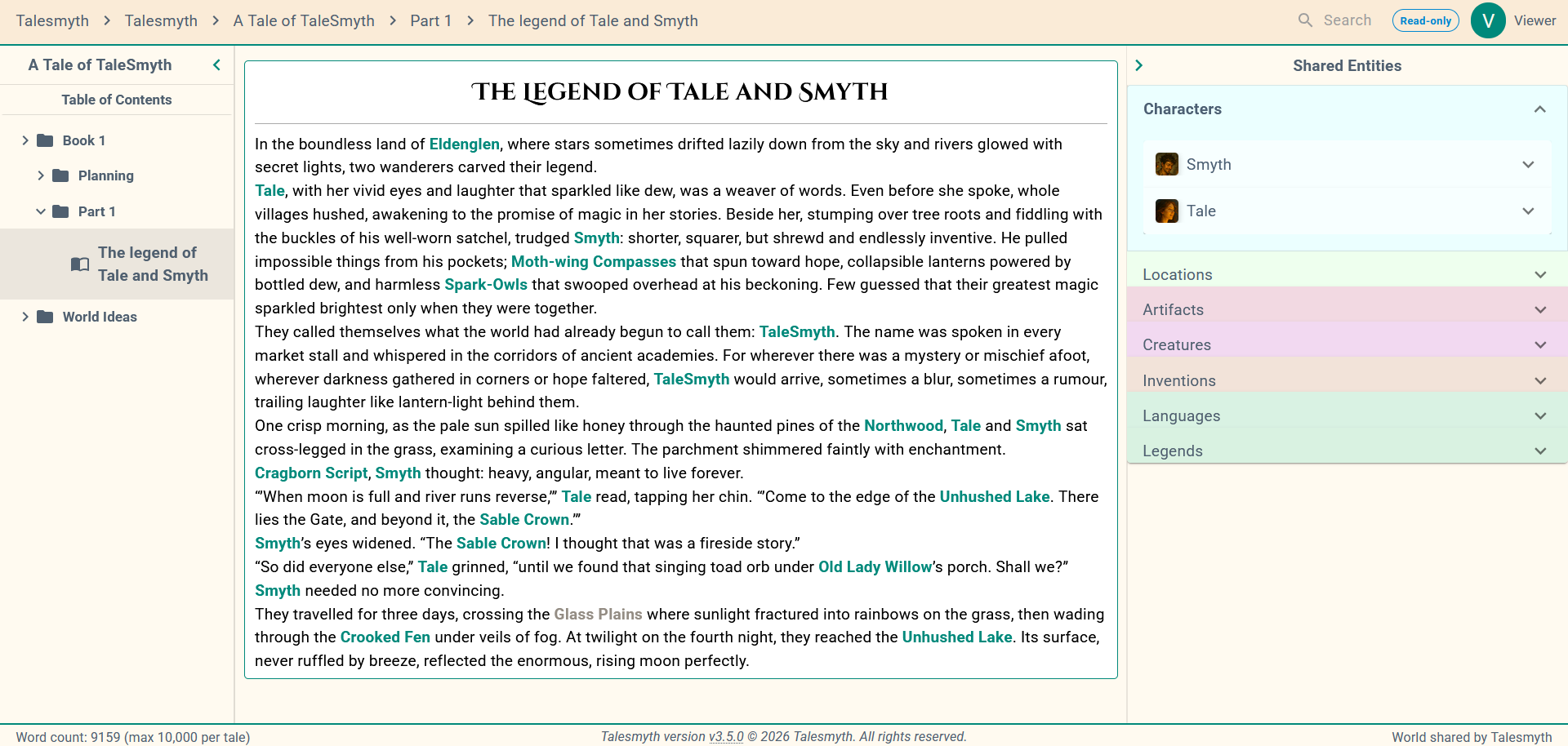
Shared worlds open in a read-only view. Visitors can read tales, browse entities, and pan and zoom around boards, but they can't change anything.
There's a breadcrumb showing who shared the world, and a sign-up link if they want to start their own.